
Plug in your Language
English ain’t your thing? No problem. We’ve got several other languages to choose from.
Language Packs
We use the GNU gettext localization framework (.pot files) which is the WordPress de facto standard. The community has translated our themes into several different languages.
Below you will find information on how to install your language packs. We can also use your help if a language pack has not yet been created (see below).
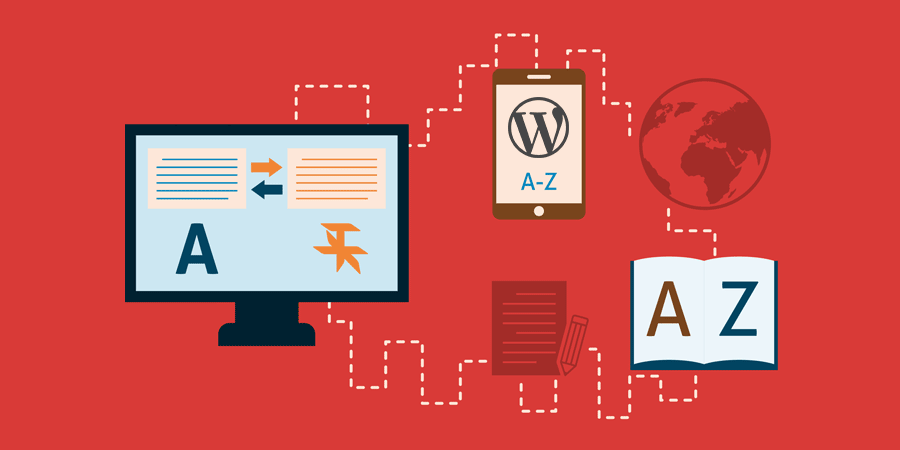
Using Language Packs
In this example, we’ll install the Portuguese Brazilian language pack on the JobRoller theme.
- Download the language pack from the relevant theme language packs page (links above), and unzip it.The file name should be in the format
jobroller-pt_BR.mo - Edit your wp-config.php file and paste in
define ('WPLANG', 'pt_BR'); - Upload the .mo file to your server
/wp-content/languages/themes/jobroller-pt_BR.mo - Go and view your site. Everything should now be working!
For more detailed step by step instructions, please refer to the using theme files tutorial.
Installing WordPress Language Packs
If your WordPress admin pages are in English, you can easily change them. In this example, we’ll install the Brazilian WordPress language pack.
- Find and download the WordPress language pack and unzip it.
- Create a new folder called “languages” in your
/wp-content/folder - Move the pt_BR.mo file into your new
/wp-content/languages/folder - Edit your wp-config.php file and paste in
define ('WPLANG', 'pt_BR'); - Go and view your WordPress admin area. Everything should now be working!
Also see our instructions on how to translate a WordPress theme and how to translate a WordPress plugin.
We need your help!
Don’t see a language pack in your native language? Become an official AppThemes translator and reap some nice benefits.

Official Translator
Represent your country and be deemed our official translator for your language.

SEO Backlink
Get your name listed in lights along with a free backlink to your website.

Receive Your Bounty
After all your hardwork, we’ll forge a special 40% off coupon to use on any theme purchase.
It’s easy to get started. Follow these instructions on how to translate a WordPress theme into your language. When you’re finished, contact us and tell us the good news. We’ll respond and ask that you send us the translated .PO file. Once we verify the work is completed, we’ll give you the goodies!