

How to Translate a WordPress Theme
If you are familiar with WordPress and the many plugins and themes available for it, you’ve probably come across some strangely named files like .mo, .po, and .pot. If you haven’t then the theme and/or plugin has not been designed for translation.
This article explains how to take a .po file that is included with your WordPress theme download and translate it into your native language.
So what the heck are those .mo, .po, and .pot files anyhow and why are they included in my download?
Well, the files aren’t really important if English is your primary language but if you want to have WordPress, a WordPress theme, or even a plugin localized in your native language then those files are golden.
- .mo stands for Machine Object
- .po stands for Portable Object
- .pot stands for Portable Object Template
The file that you want is ideally a .po file since it’s the raw editable text scraped from the entire WordPress theme/plugin. The .mo file is the compiled export of the .po file which is used by WordPress.
Here are the steps to translate/localize a .po or .pot file into another language
- Download a gettext file editor like PoEdit and install it.
- Open the English .po file that came with your WordPress theme or plugin with poedit. If you only got a .pot, just rename it to .po and open it in poedit.
- Now go through and translate all the text one line at a time in the bottom box.
- Then “File” => “Save as” to your desktop or a folder on your computer. This will output a .po and .mo file.
As you can see from the screen shot below, the top part of the file contains the entire list of text that needs to be translated. Each line represents a place within the WordPress theme or plugin that stores the text. If you click on different lines, you’ll notice the section below displays that exact line of text. What’s even cooler is if you right click on any line, you’ll see a file name and line number like “comments.php line 121”. That is the exact place in the theme or plugin where this text is being used.
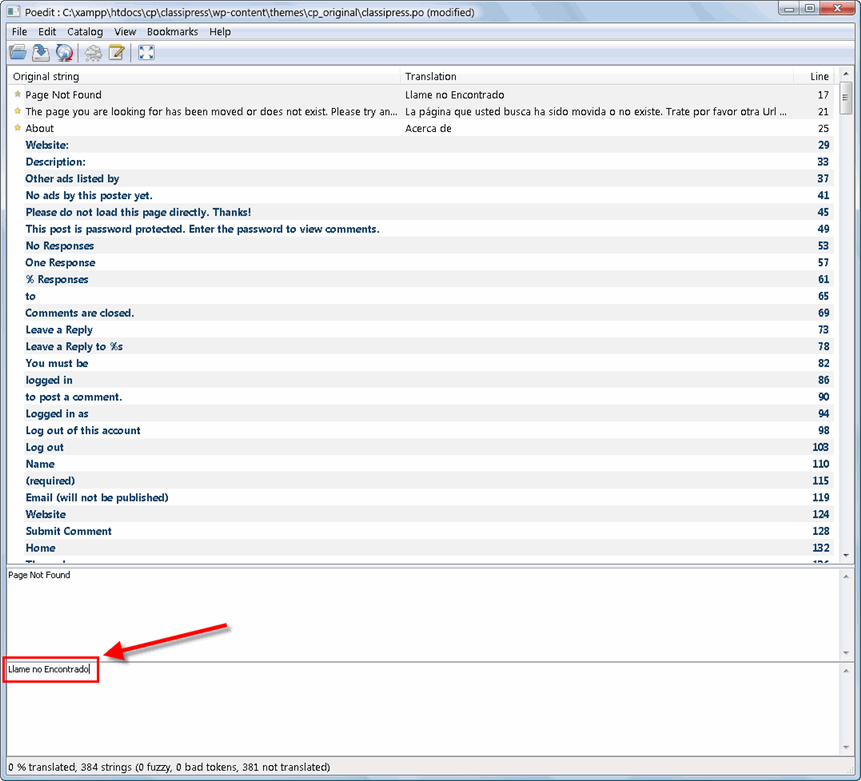
Now here’s where you need to pay attention. The blank box below that is where you will type in your translations. So in the screen shot I translated “Page not found” into Spanish by typing in the correct translation in the box below.
Important Note: Some text characters need to be converted into html entities otherwise they will not display correctly. A very common example is a word containing an apostrophe or single quote (‘) which needs to be replaced with ' — for example, Chloe O’Brian should be written as Chloe O'Brian. Kind of strange I know but that’s just how the parser works. For a complete list of html entities, visit W3Schools.
One other thing worth mentioning. PoEdit might give you an error related to “% comments” while you try to save the file (usually when you have a K preceding it like in German, “% Kommentare”). Usually if you just ignore the error, it will save fine. I will try and fix that comment translation issue in the next release.
After you start making updates, you’ll notice the upper right portion of the file will begin to fill in. Once you finish the translation (make sure to save often), you will have your final raw file.
Now that you’ve completed your translations, you can plug-in your file and see if it works. The .po file is your editable file which you can always load back up in poedit and update. The important file is the .mo file. This is what WordPress will use and if it’s for a new theme like ClassiPress, it needs to be placed in the /wp-content/themes/classipress directory.
I also forgot to mention that the naming of your .mo files is very important and must match the desired locale otherwise it won’t work. The naming convention is based on the language code (e.g. pt for Portuguese) followed by the country code (e.g. _BR for Brazil). So, the Brazilian Portuguese file would be called pt_BR.mo. See the complete list of language codes and country codes to find your exact locale.
You will also need to make a change to your WordPress wp-config.php file (located in your WP root directory) with the correct language codes like the example below. If you don’t have a WPLANG entry then create one.
define ('WPLANG', 'pt_BR');
Assuming you’ve made all these changes, you should now be able to reload your WordPress theme and see it in your native language! If it’s not working, chances are you didn’t use the correct naming conventions for your .mo file or in your wp-config.php file. If you see part of your site translated you either didn’t translate the entire .po file or the .po file wasn’t completely translated correctly in the first place.
So if you recently purchased ClassiPress and a language pack file (.mo) is not available for your native language, you should follow the steps above and create your own. ClassiPress is designed to work with virtually any language so just take the included .po file and translation away! Make sure to contact us and send over a copy so others can download your language pack. You will get full credit for the work and a link back to your site in return.
How to Update an Older Translation
If you’ve previously translated an older version of a theme and upgraded your site to the latest version, you’ll notice the translation file no longer works correctly. This is due to the fact that some theme strings have changed and the old .mo language file doesn’t have translations for those strings.
- First open your old existing .PO file (i.e. classipress-pr_PR.po) in POEdit. “File” => “Open”
- Select “Catalog” => “Update from POT file” from the menu and select your new .POT file from the theme folder (i.e. classipress.pot)
- Now PoEdit will show you what text is new and needs to be translated. It should also update any other changes that have been made.
- After you have translated the new text, save the project, which will generate your new .MO file.
- Overwrite your old .MO file in your languages/themes/classipress/ directory and look at your site.
- Also make sure you’ve activated the latest version of the theme (the one that the new language file came with)
Now that should be it. Once you know how to work with existing .PO files, doing the updates can be really easy.
More resources about how to translate WordPress into your language is located here.
Comments (34)
Hello, i bought this great theme yesterday, and have the spanish translation ready.
You can check it in my site: http:www.clasificadoanuncio.com
I’m contacting right now to send you the files.
Regards…
Great…thanks. I’ve just sent you an email with details on how to get listed on the classipress resources page.
Hola, donde puedo conseguir la tradiccion en español?
Gracias
Gustavo, escribime a grangonzo1 arroba yahoo.com.ar y te la paso.
classipress is best wordpress theme. I love it.. Thank s for make this theme.
hi david! i tryed to translate in italian but it doesn’t work in anyway! i modified wp-config with “pt_IT”, i created 2 files pt_IT that i put in wp-content/languages and the same 2 files (named classipress.po and classipress.mo) in themes/classipress..
where’s the mistake?? i don’t understand 🙁
thanks!
spachez
spachez contact me and i’ll help you alex . azzi (at) gmail
Hola !
Me gustaria saber si ya hay una traduccion oficial al Español de Classipress y si realmente funciona ¿ donde se puede conseguir ?
Saludos!
Hello David and all,
I am having a real hard time translating de CalssiPress. I have red all the posts and mixed information about these and i believe i am doing the right steps. What i did was:
1. Downloaded and unziped the pt_PT-2.9.2.zip file from http://wpclassipress.com/resources/
2. With FileZilla i copied the pt_PT.mo file to /wp-content/themes/classipress
3. With FileZilla i went to the wp-config.php file and edited to: define (‘WPLANG’, ‘pt_PT’)
After doing all this, when i try to reload my site i get a blank page with this error message: Fatal error: Call to undefined function wp() in /home4/mercado7/public_html/wp-blog-header.php on line 14
Even if i undo all the steps above, i still get the same blank page and message error. I can only reset all this if i unistall WordPress from my server (BueHost) and start it all over! Just to hapen the same again…
I have also tried to put the pt_PT.po file together with the pt_PT.mo into /wp-content/themes/classipress and also to creat a /wp-content/languages folder and put them both in it.
Can anyone give me some help here? My site is http://www.mercadosurf.com. You can reply directly to my email parenteandre(at)hotmail(dot)com
Thank you very much
André
How do I make the yellow color for the featured ads a darker shade? My yellow shade is so light it’s almost white…
help please..thanks
How about time translation in ad list? Is there any suggestions how to make that “8 mins ago” sound in native language?
This item is translated into the line where it is written (% s ago).
Is there a way to easily change between multiple languages for the classipress theme. If we have multiple versions of the .mo, .po, .pot, is there someway to change it. I want to keep the posts (classified ads) the same, just change the menu and stuff.
Realy nice post and i am realy greatful to this post.
Me gustaria saber si ya hay una traduccion oficial al Español de Classipress y si realmente funciona ¿ donde se puede conseguir ?
Gracias!
thank you, thank you, thank youuuu !!!!
Howdy 🙂
Great tutorial! I’ve used it already for an website.
But now I’ve got an problem… The theme I use for http://www.dafcoupe.nl GreenyGrass doesn’t have an .po, .pot or .mo file. How do I translate it now?
Greetings!
If the theme didn’t come with any of the language files then it’s most likely not setup to work in different languages.
Not all themes are built with multi-language support unfortunately.
Okay, thanx for your replay! Then I’ll change all the words in the theme-editor.
Greetings!
The ClassiPress has no option of Brazil’s currency the real?
There will be a new version this Sunday which includes support for five new PayPal supported currencies. Read this post for more details.
Thanks for this post as I was looking for more information about translating WordPress themes, and the tools to do so.
Wow I’m really confusing… i don’t know how many time i change WordPress to other languages!, i try everything what you wrote above, i just don’t get it… I replace classipress.mo classipress.po with the German one, but it doesn’t change a thing?
P.S. I have a German WordPress Installed*
@Buddy, you actually don’t replace those files. You add the German ones and then make the change in your WordPress config file. Read the post carefully and if you still can’t figure it out, please post your question in the support forum.
The ClassiPress has no option of Indonesia’s currency the real?
Not at this time. Here is the list of supported PayPal currencies. As soon as PayPal adds support, we can add it to our products.
Thank you very much, your tutorial is really the best among all the other “geeky” articles.
Worked quite good for me, although I found out that some strings still need to be translated, but I guess I need a WordPress localization file for that, not the theme’s .mo file.
Great article, will come back for more tips and tricks 🙂
Discussion is closed.